Stephen & Janelle’s Wedding Photos
January 11, 2015 Stephen and Janelle’s wedding photos. Highlights from the 230+ photos I took.
















































































January 11, 2015 Stephen and Janelle’s wedding photos. Highlights from the 230+ photos I took.
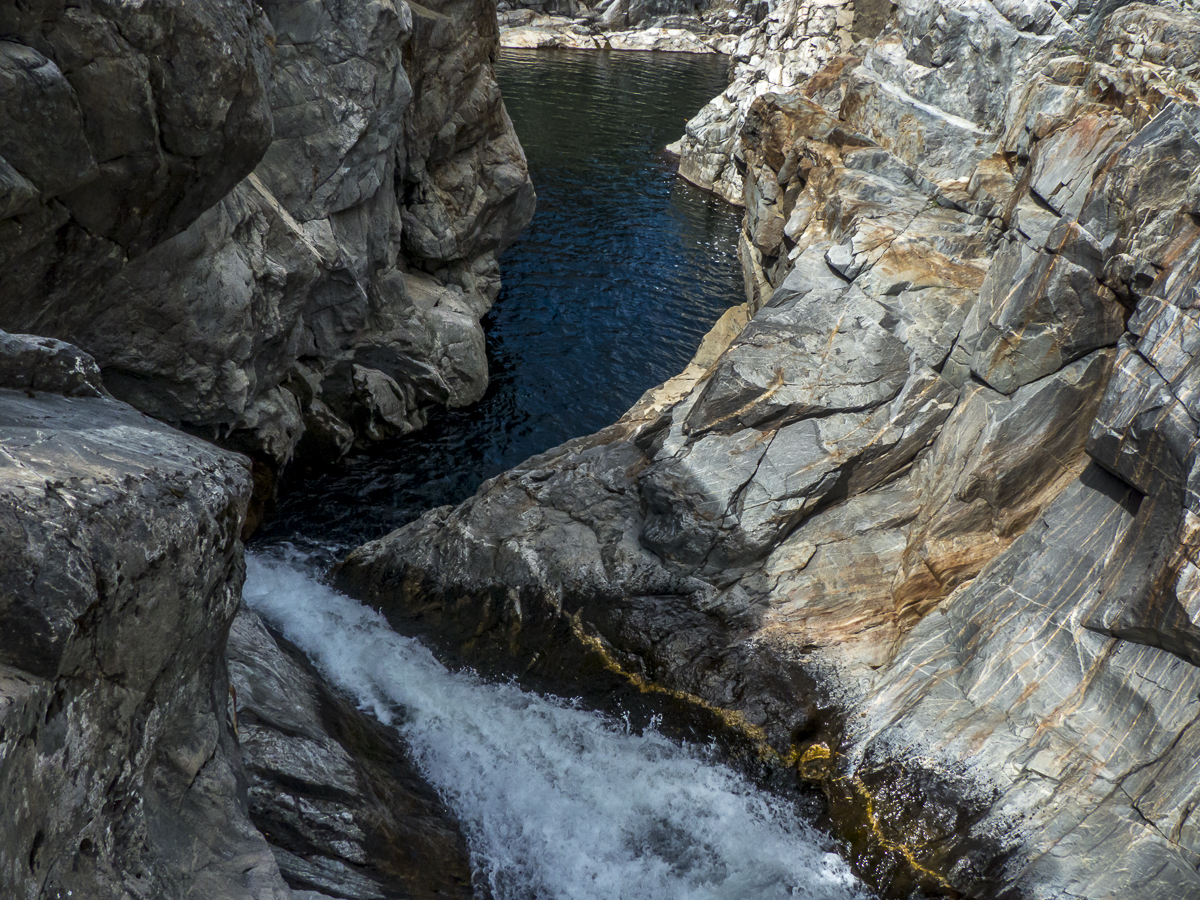
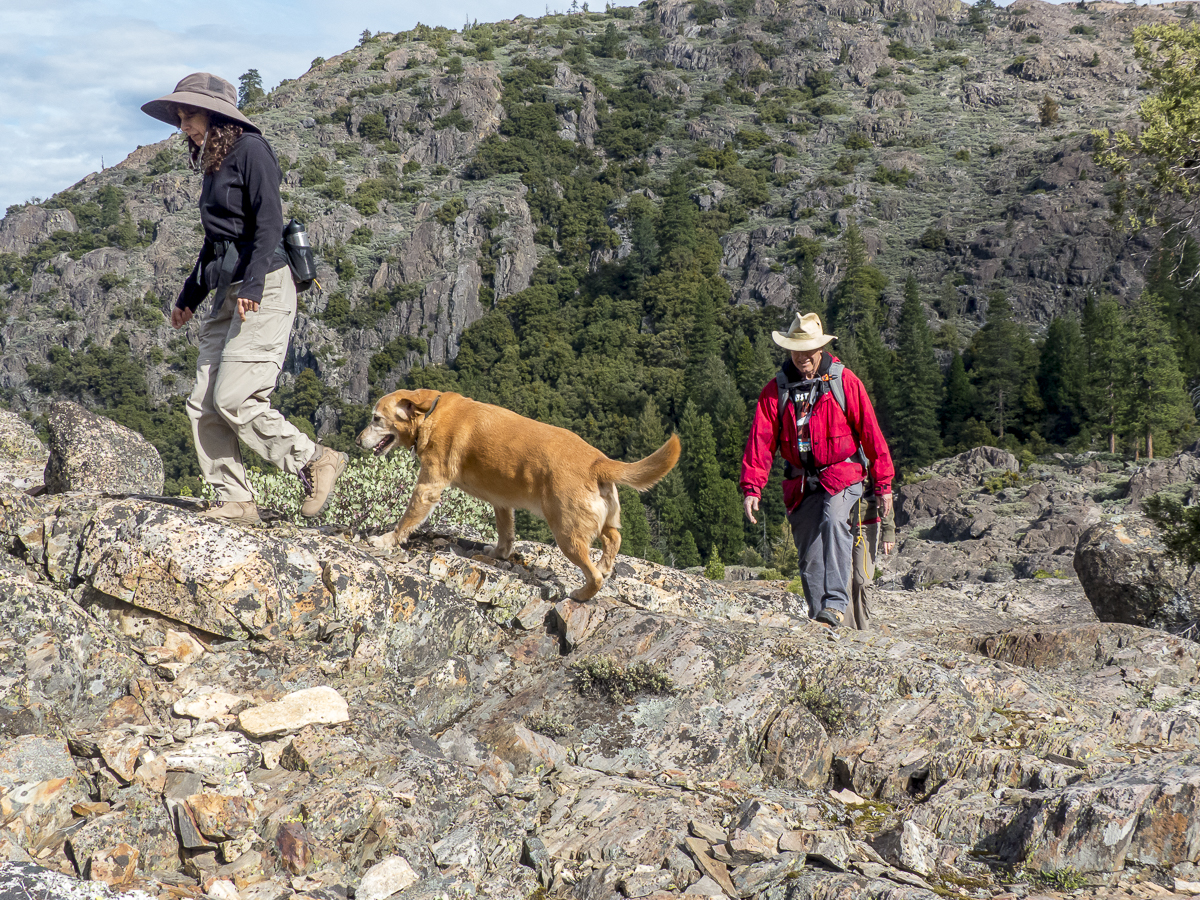
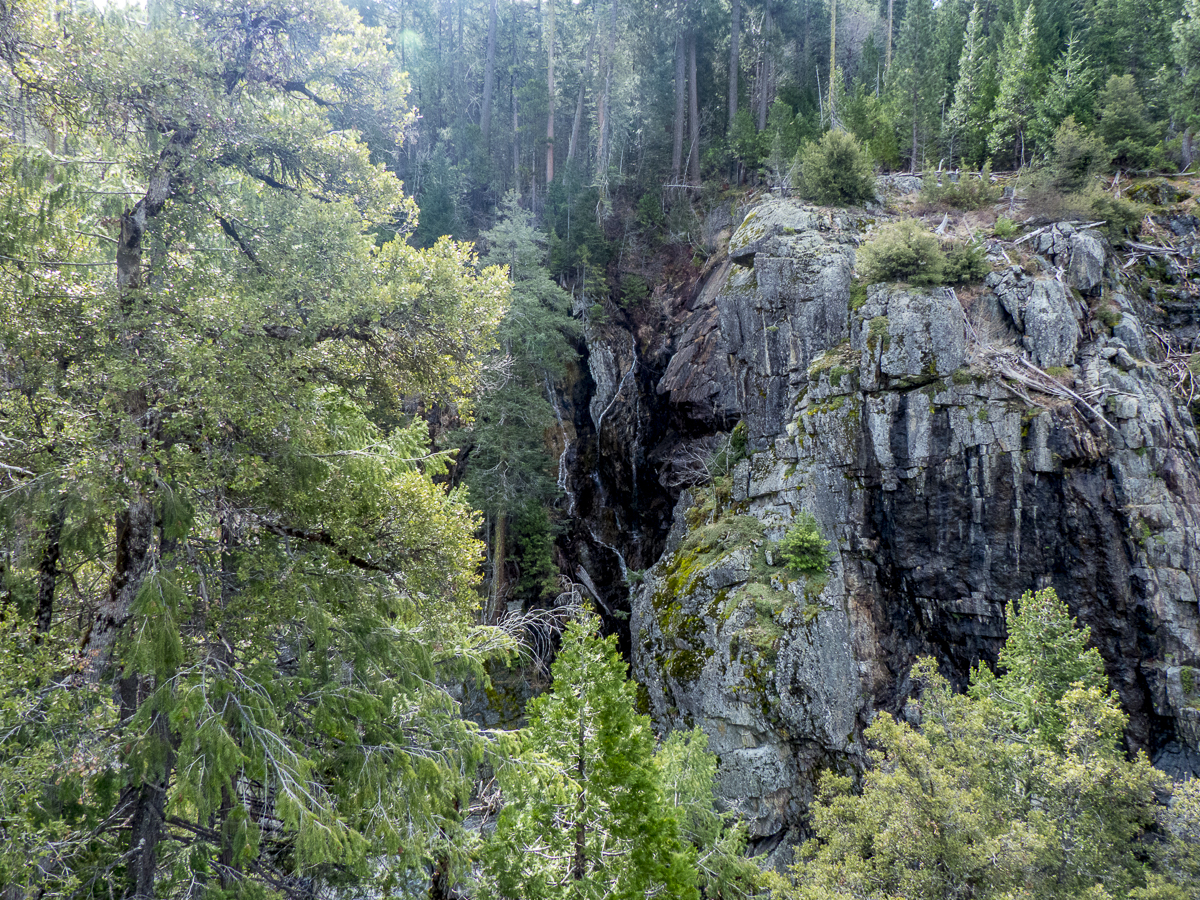
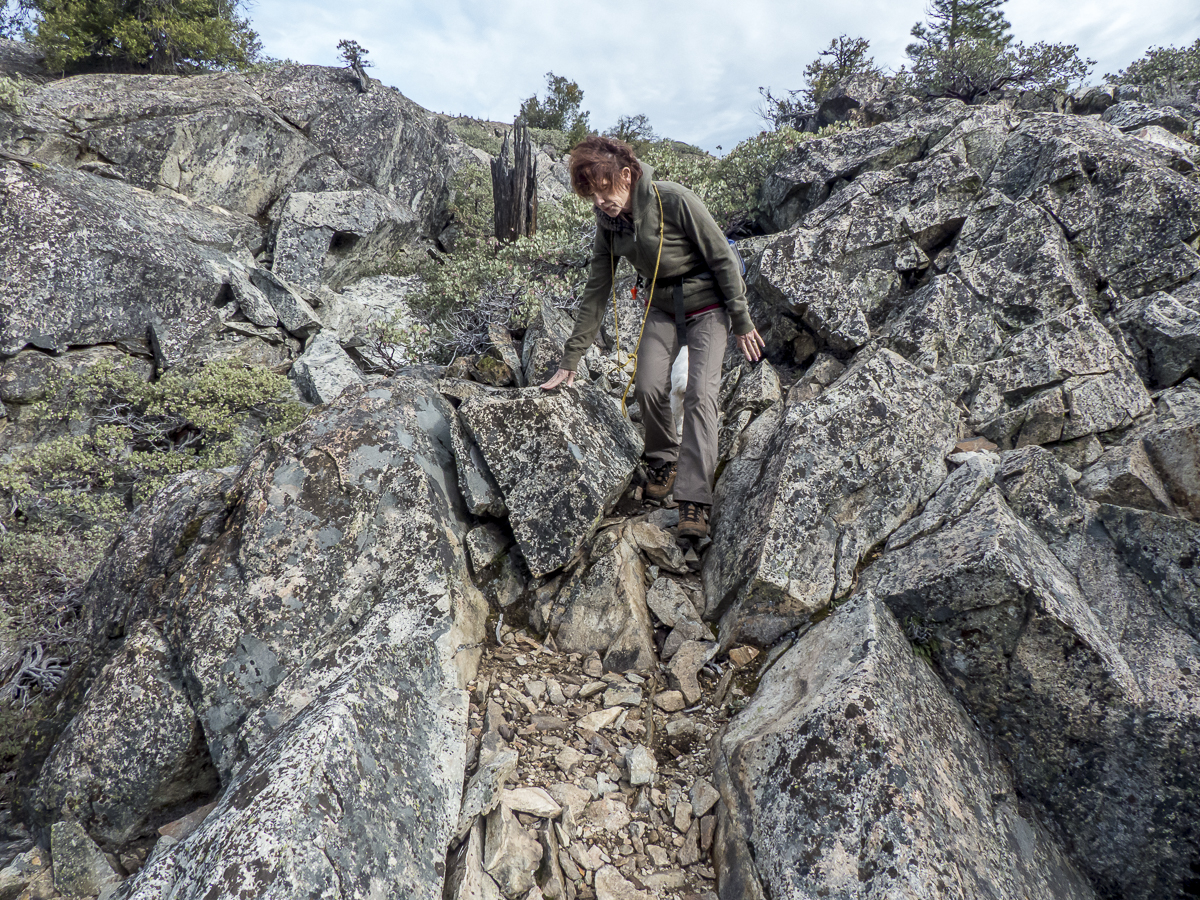
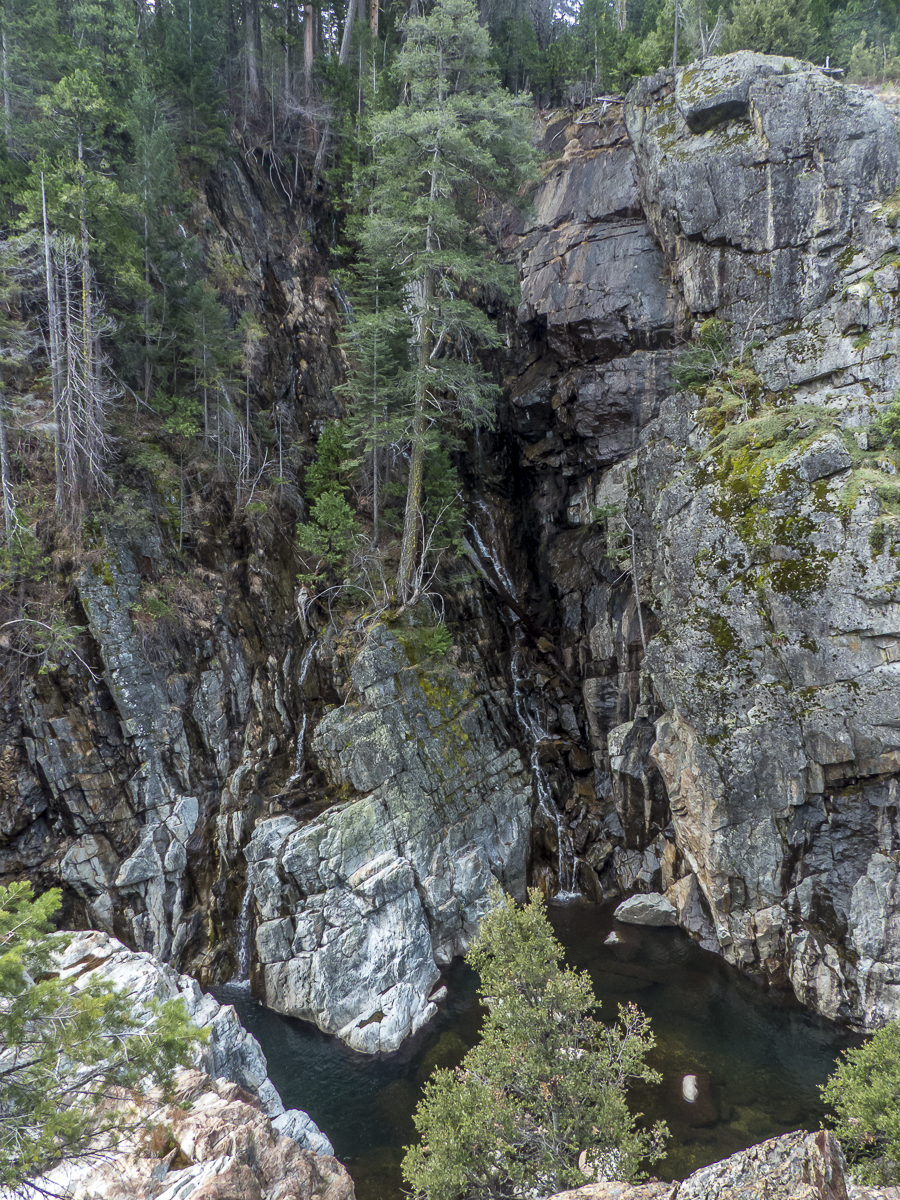
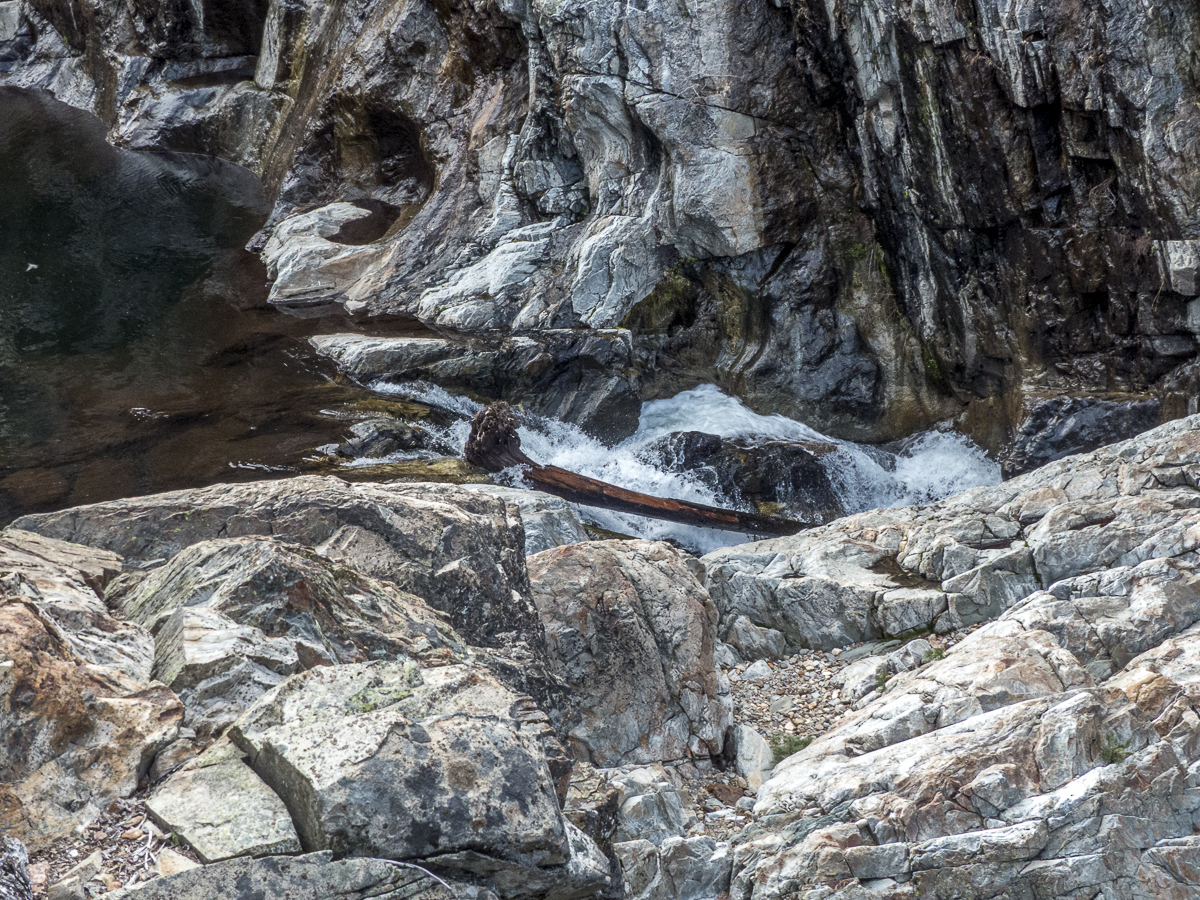
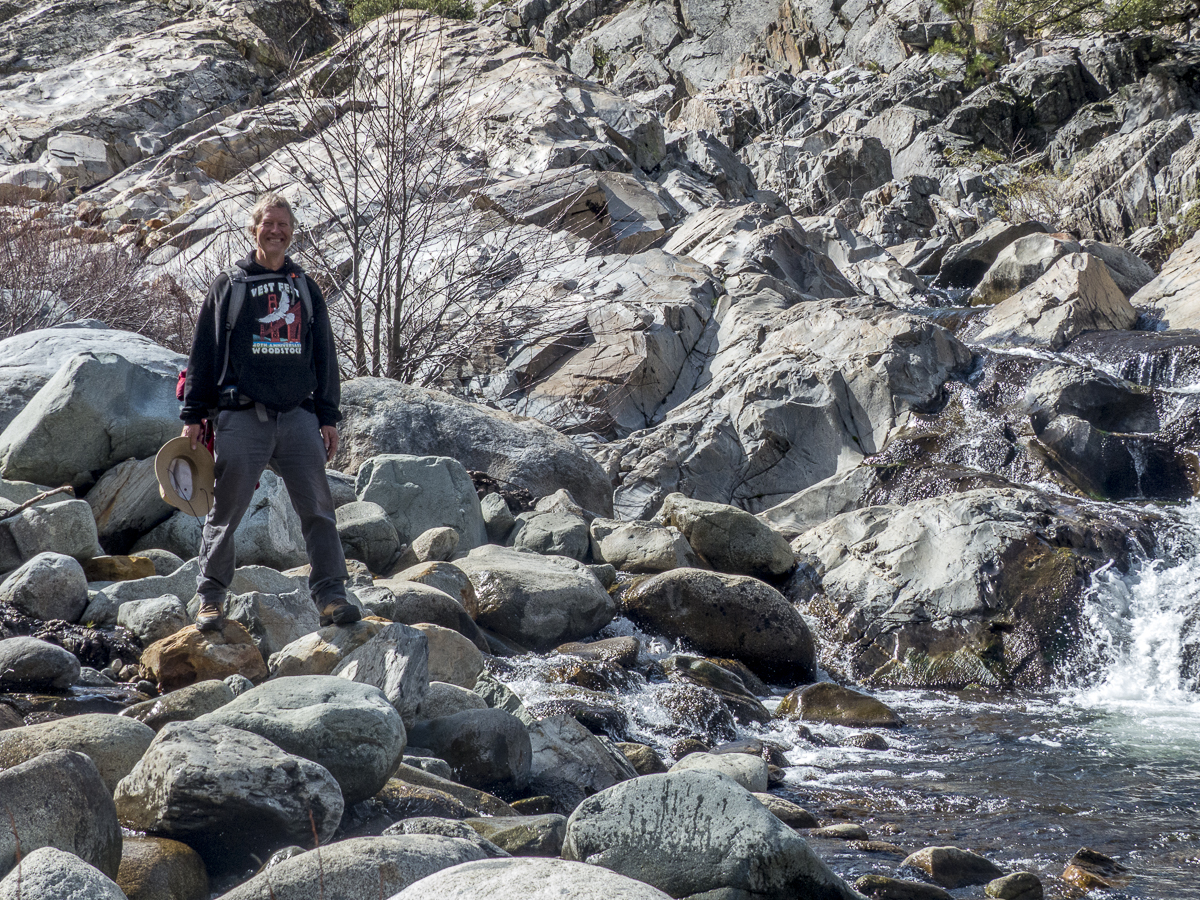
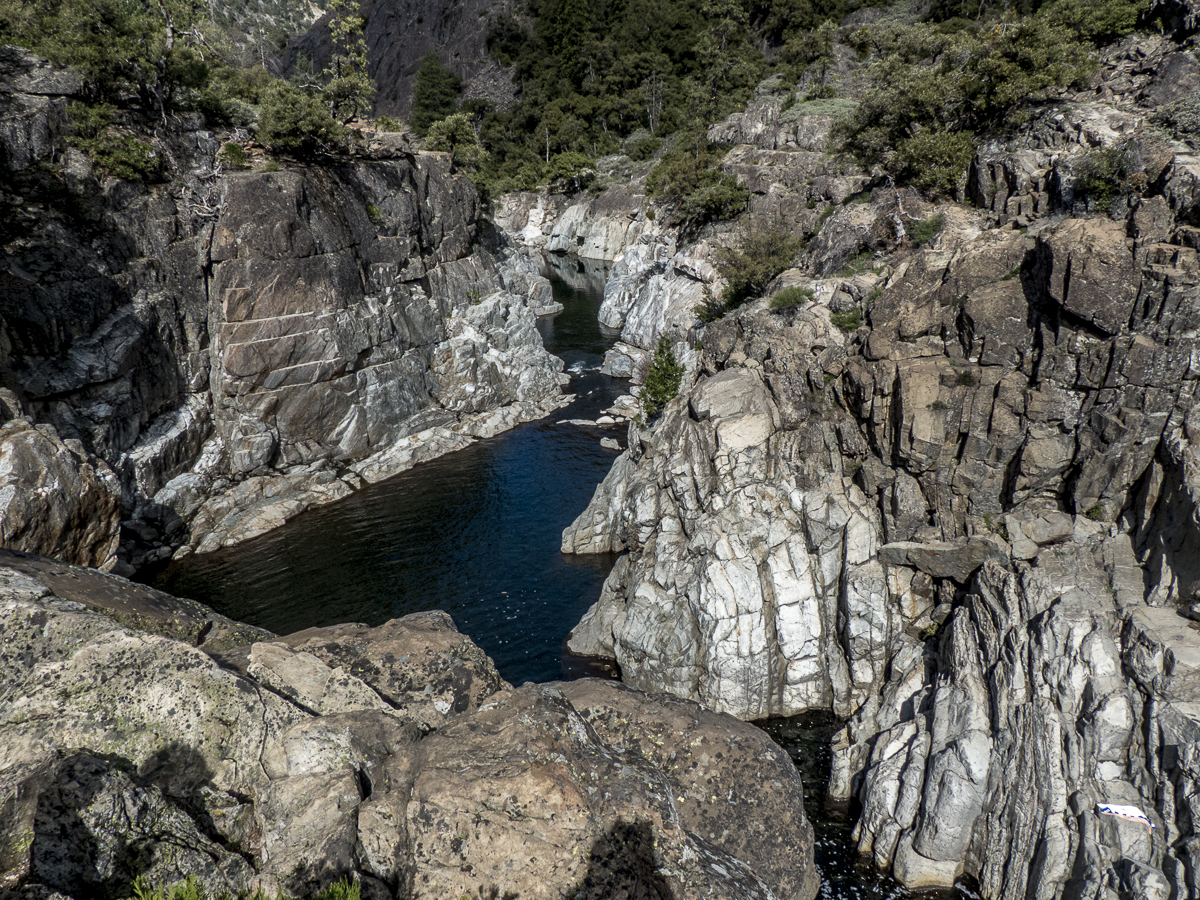
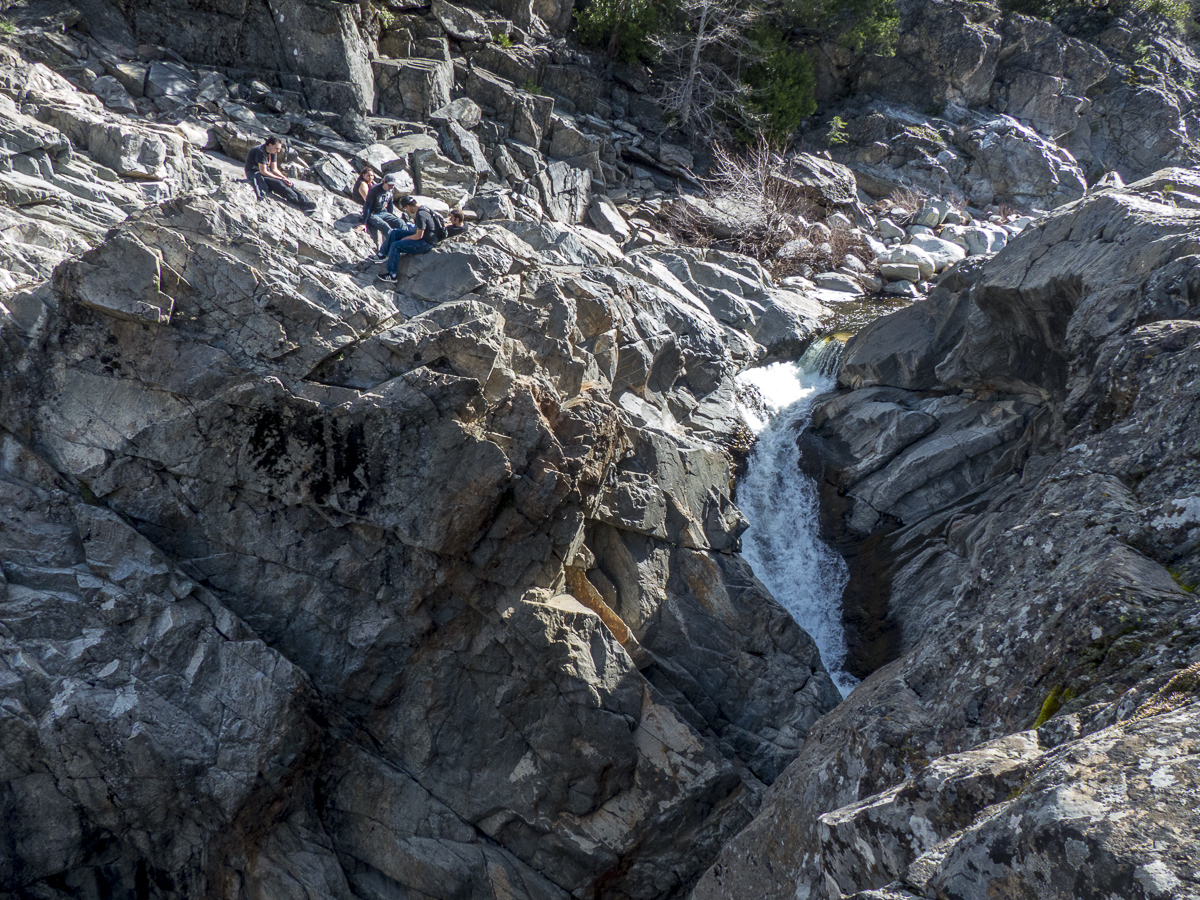
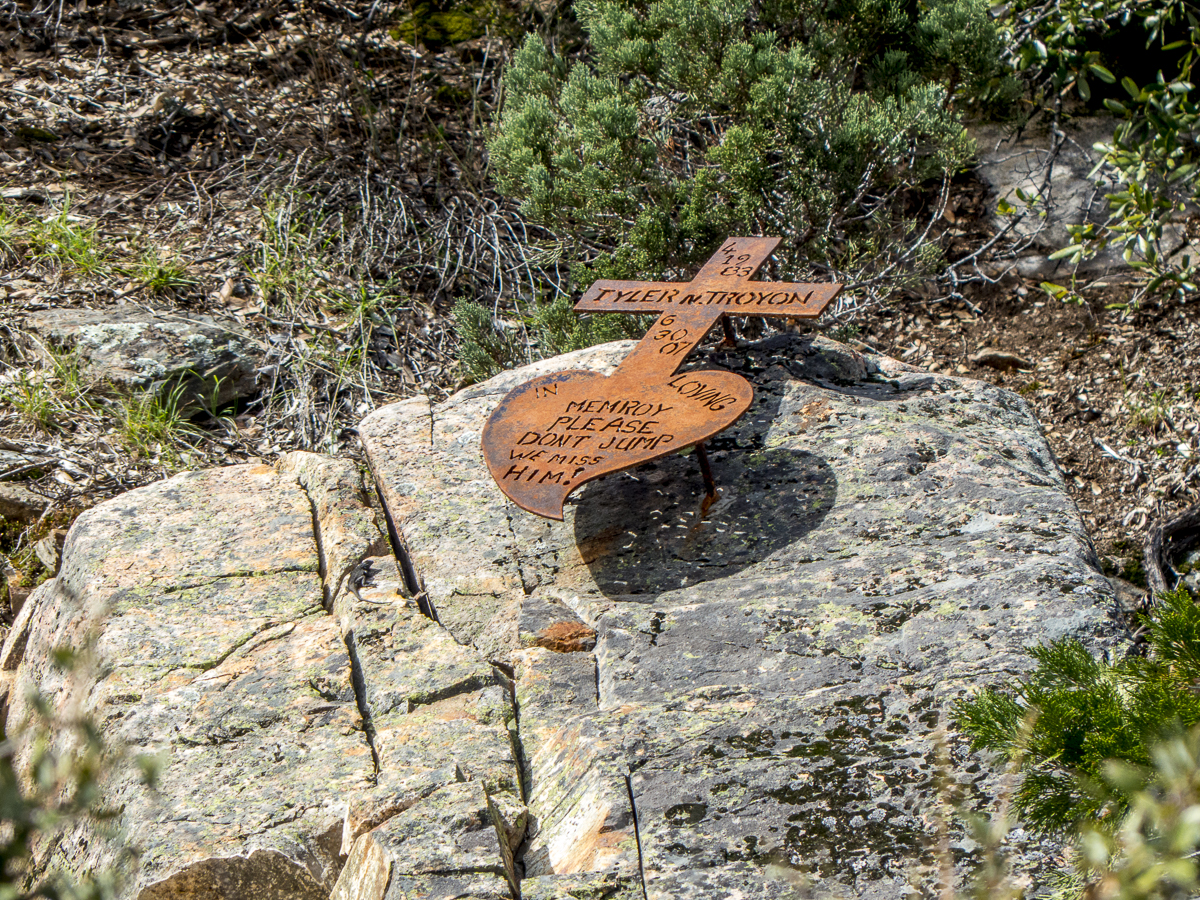
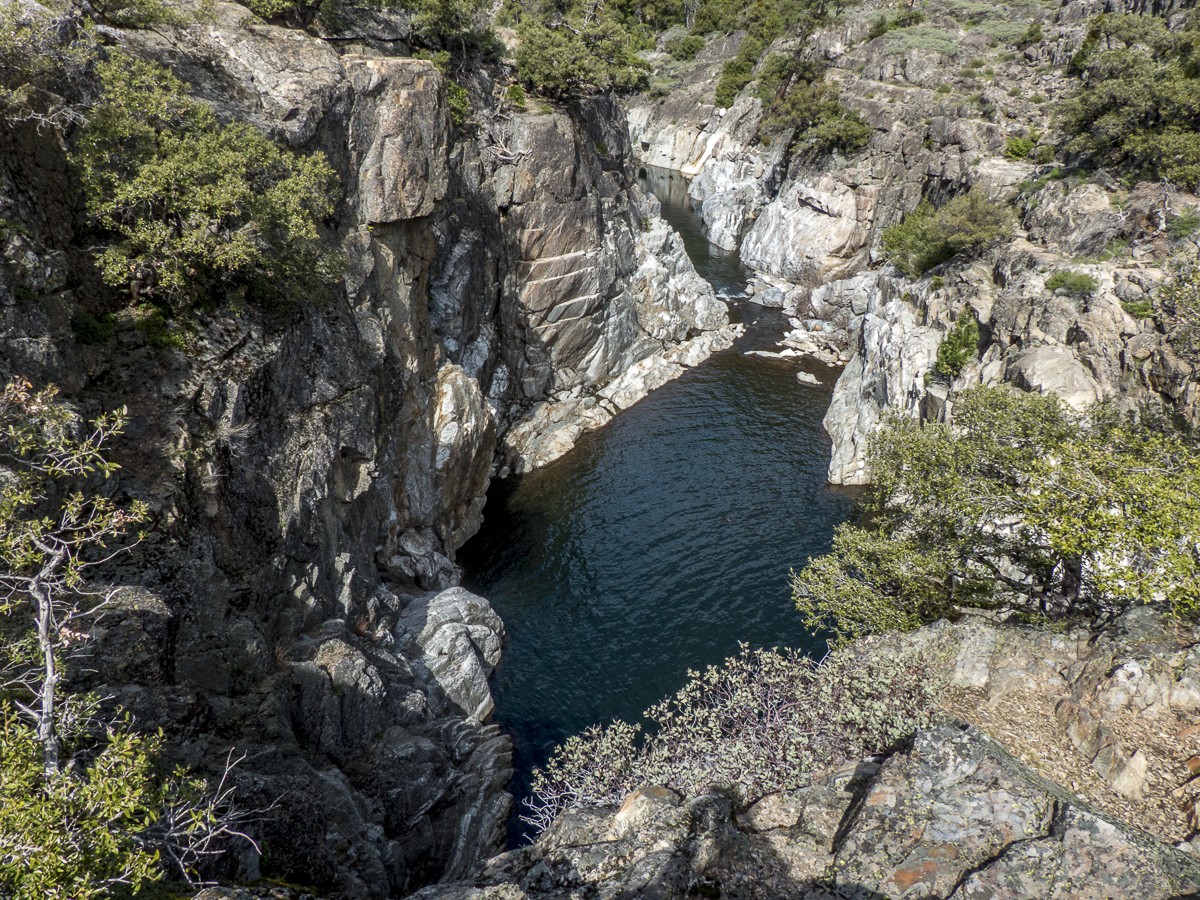
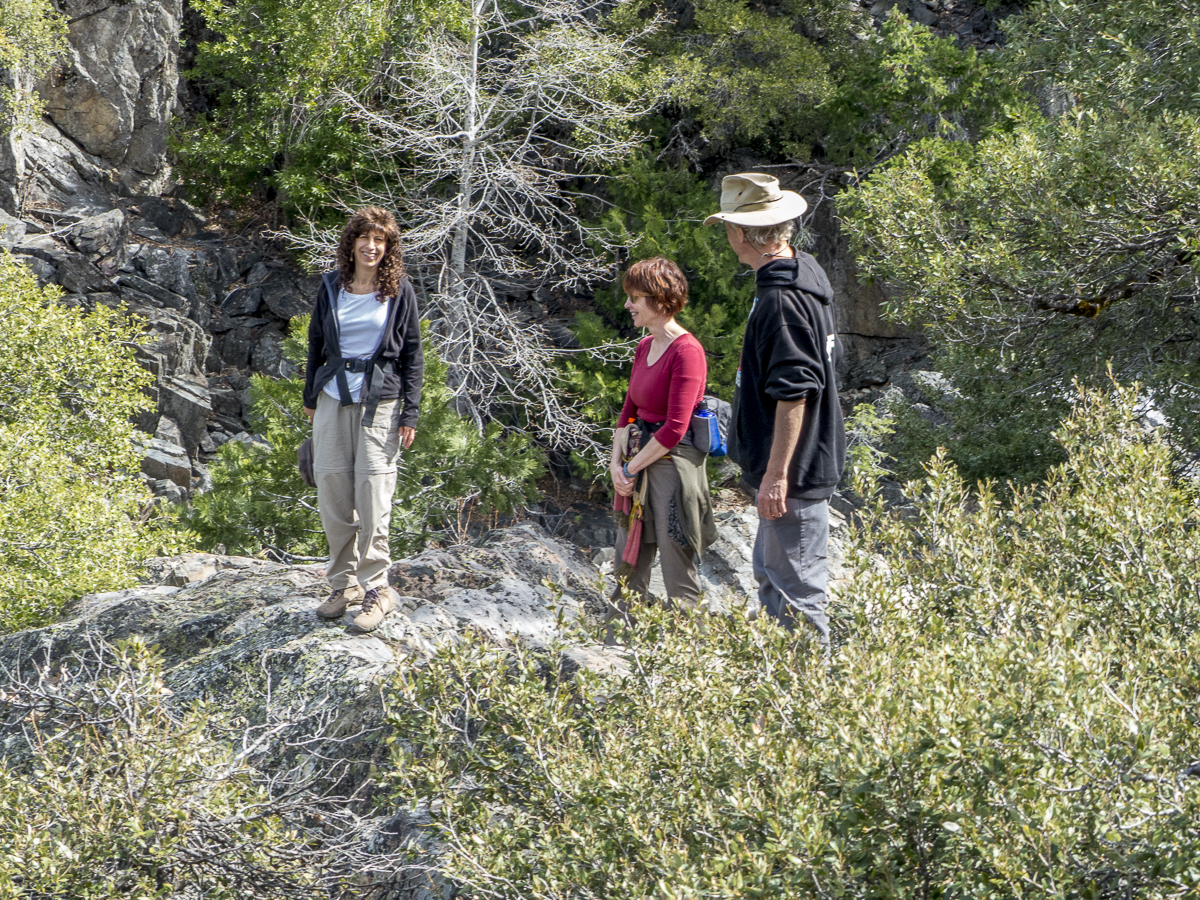
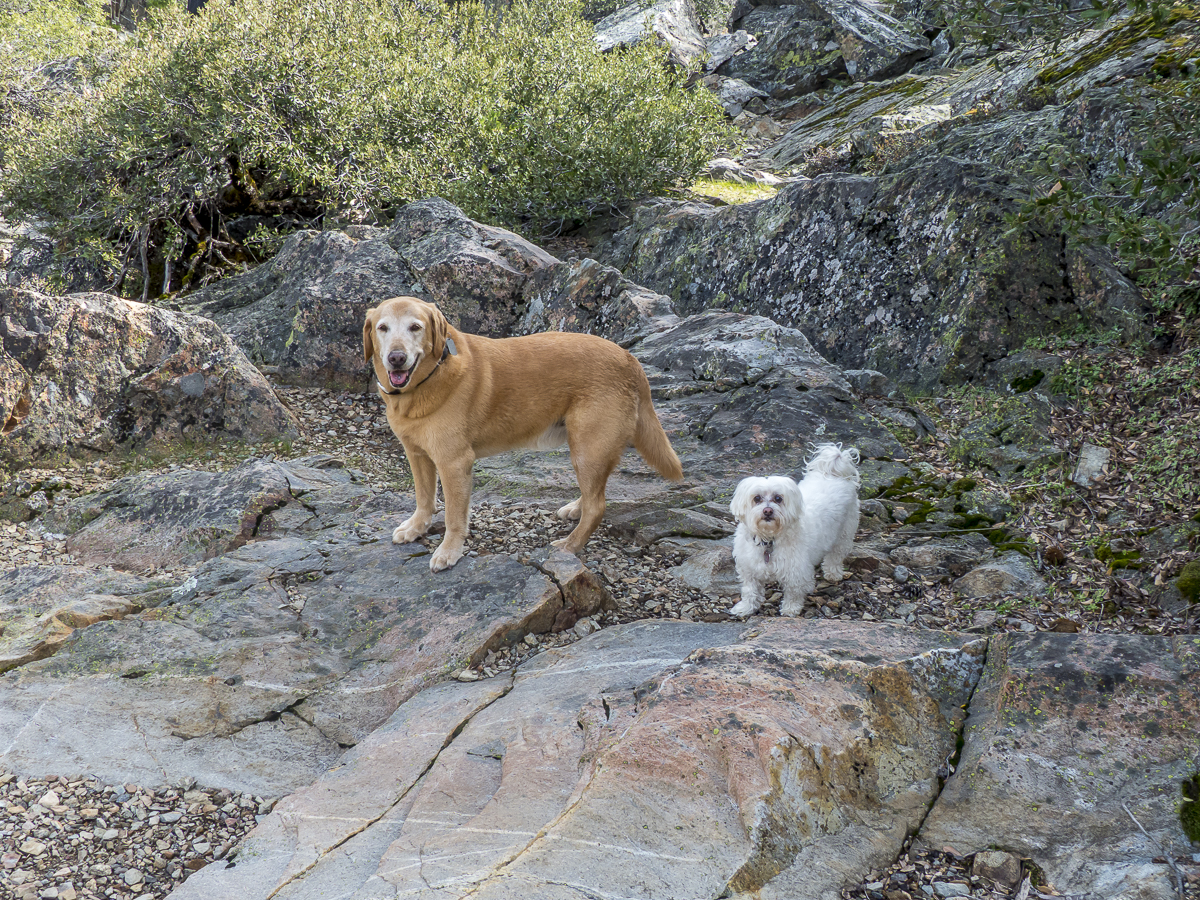
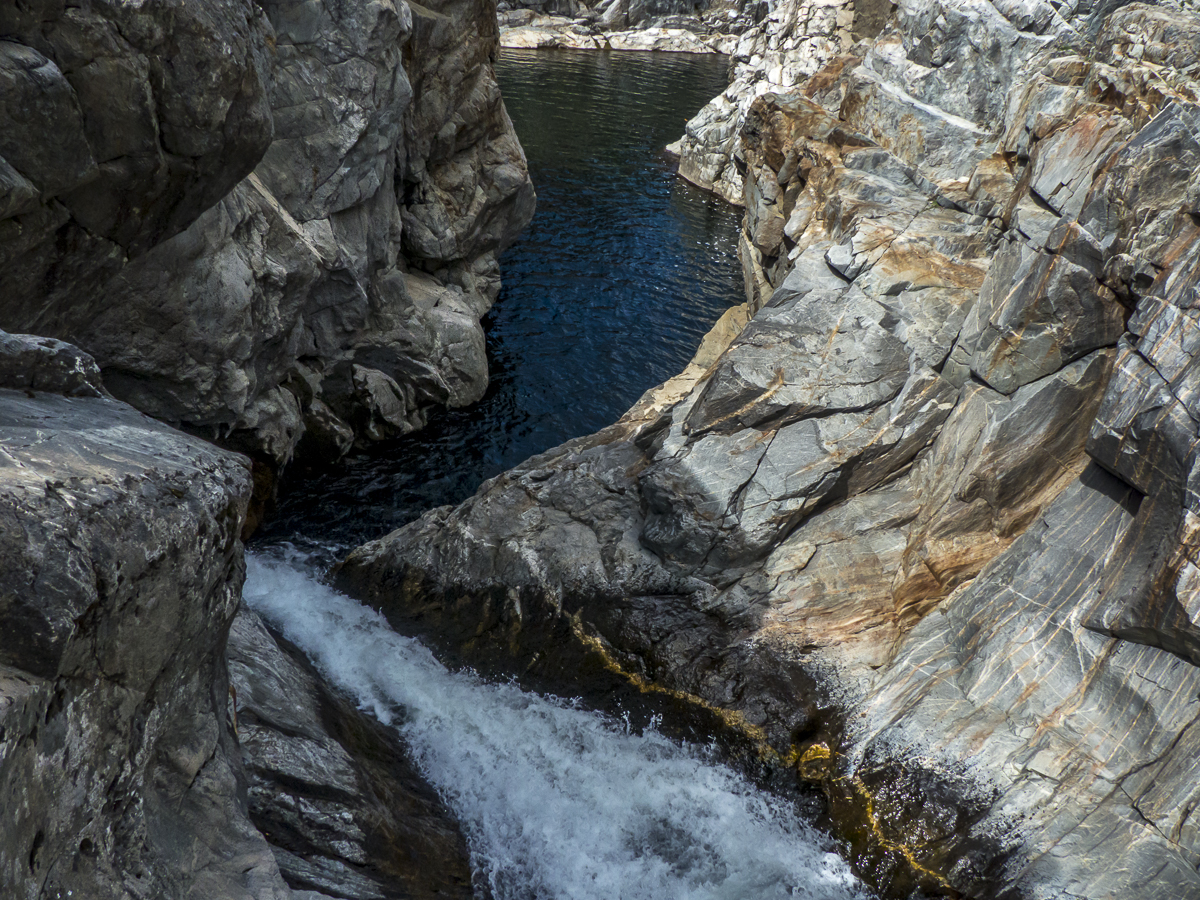
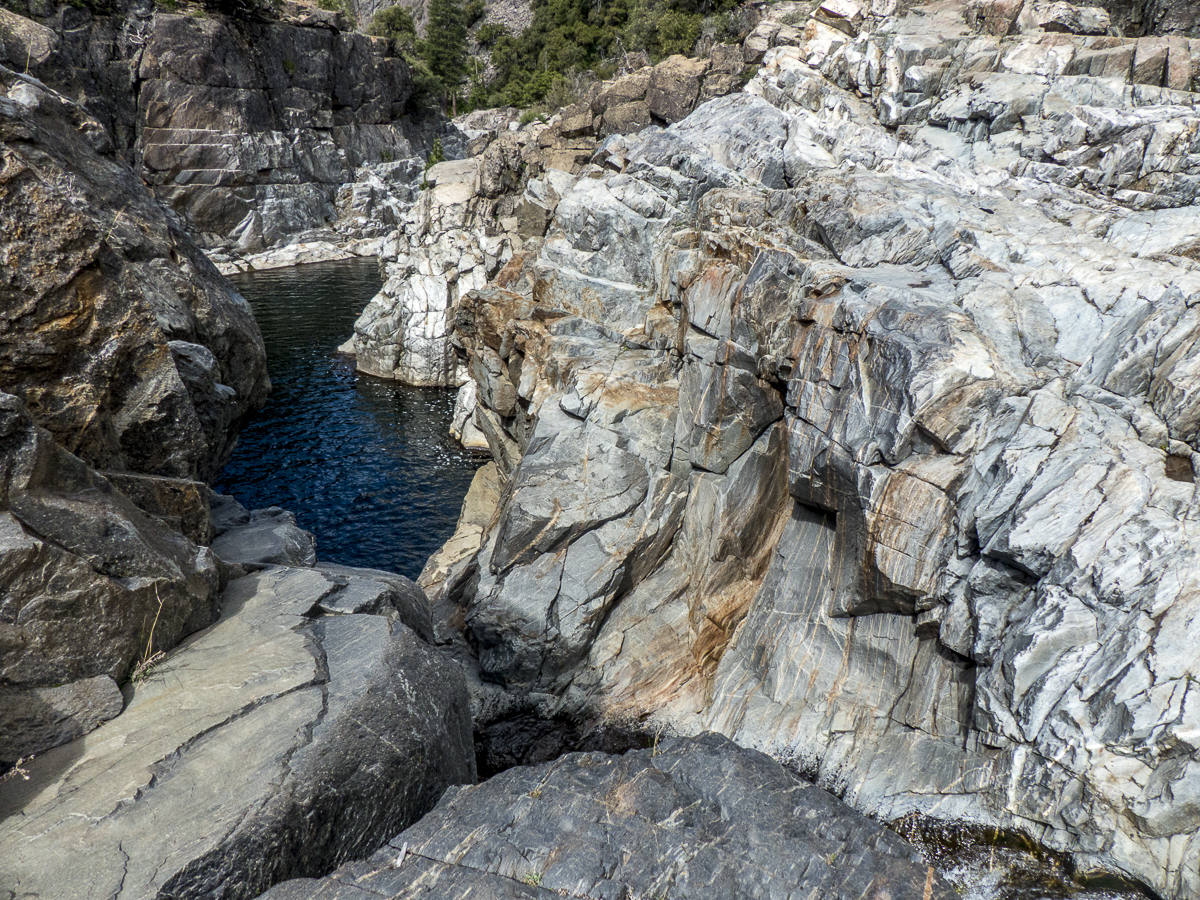
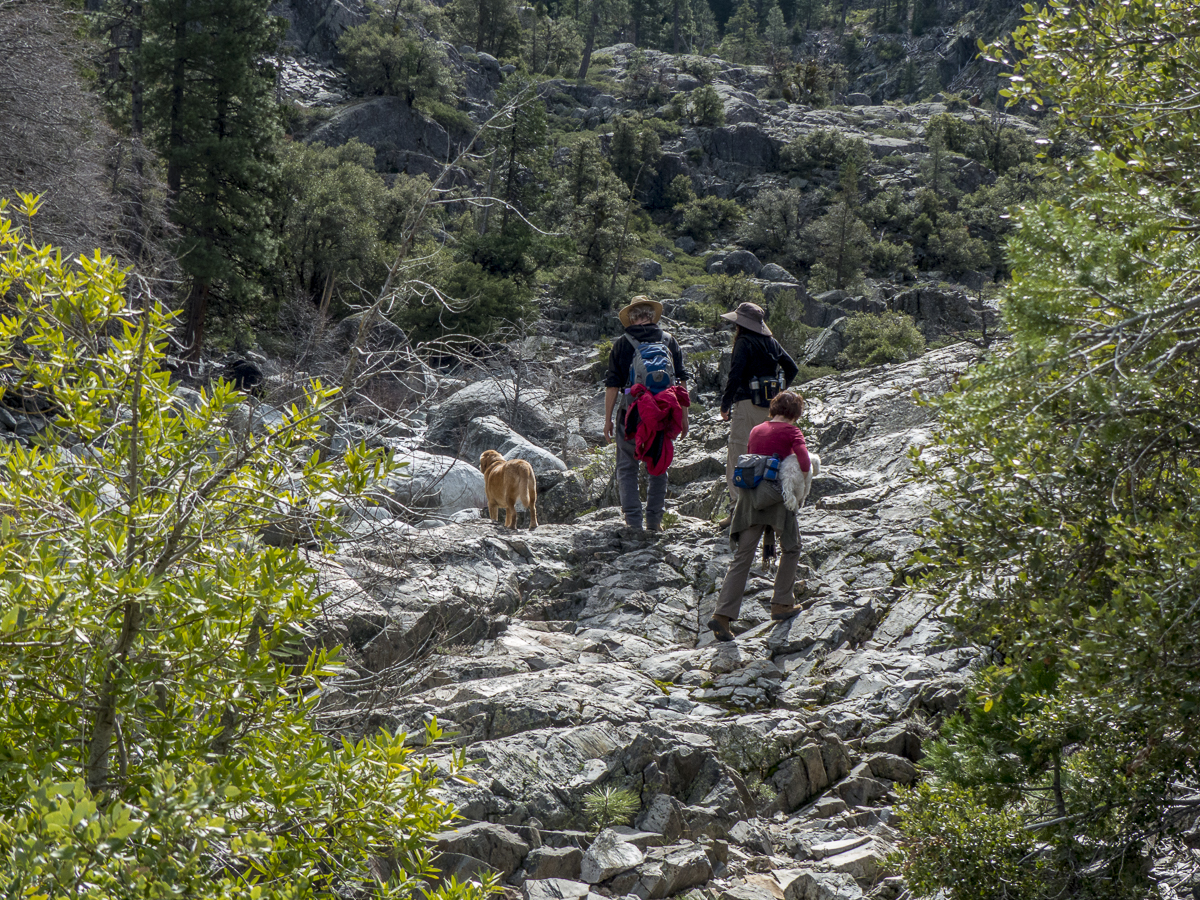
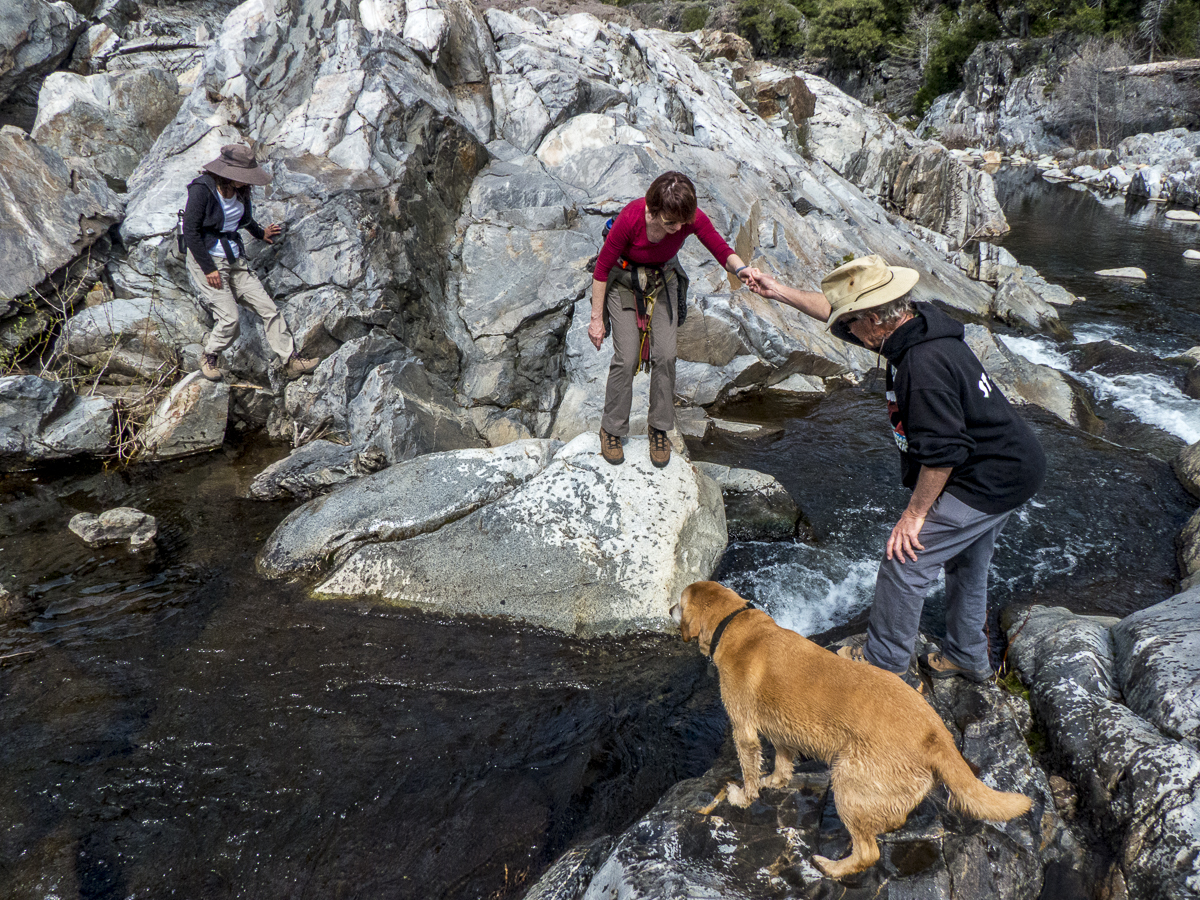
On Pi day, 3/14/15 Kate and I hiked to the Emerald Pools on the Yuba River, off the Bowman Lake Rd, with Janelle and Stephen. The weather was high 60s, but because of the drought the river was much lower than normally would be at this time. Plus there normally would have been snow at this level. We bushwacked it first to the canyon then to the pools and big waterfall. I was so glad to get back into the mountains. Everyone loved it including Ben and Biggs.














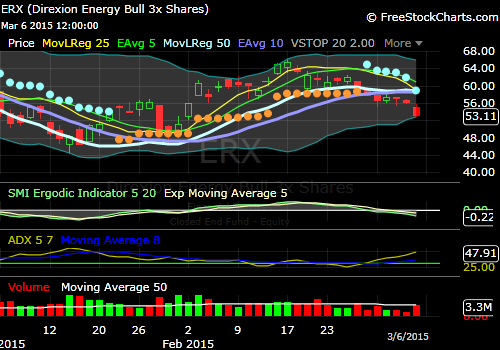
Since everyone is watching the great gas prices of January, disappear I thought I would put up a chart on oil futures. My wife noted that she paid 2.19/gal for gas in January while now it is at 3.29 here in Colfax, CA. The downswing in oil has brought the price of MLPs down to the point where they are now yielding close to 7% (ETP Energy Transfer Partners LP at 6.86%). However with this 50% increase in gasoline you would think oil was rising dramatically. In fact, the energy sector may have bottomed (jury is still out on that) but it certainly has not come roaring back. Today West Texas intermediate crude is under $50 per barrel. I am following the ETF Direxion Energy Bull 3x ERX, and after a bounce in the first half of February it appears to be headed south again, similar to the oil futures (chart here).
Quotes from an article on theStreet.com:
“Just by oil getting 20% off its low, they think the sun has come back out and the birds are singing and it’s a wonderful time to own oil,” Evans said. “Meanwhile, the statistics show oil production hit its highest level since the early 1970s — a 40-year high — and is 15% higher than a week ago.”
Crude oil inventories are the highest in 84 years, since 1931. The U.S. Dept. of Energy weekly inventory series dates from 1982, so analysts making that comparison are looking at an older, monthly data series from a different source, he noted.
Inventories of 444.4 million barrels are 80.6 million barrels, or 22.1% higher than a year ago and 89.5 million barrels, or 25.2%, above the five-year average level.

On January 3rd, 2015, the Sacramento family went to Global Winter Wonderland. The first time ever in Sacramento, and maybe the last, who knows. It travels from city to city each year. Must be a huge endeavor to set up. It was gorgeous and even though it was after Christmas, it was packed. So glad we went.












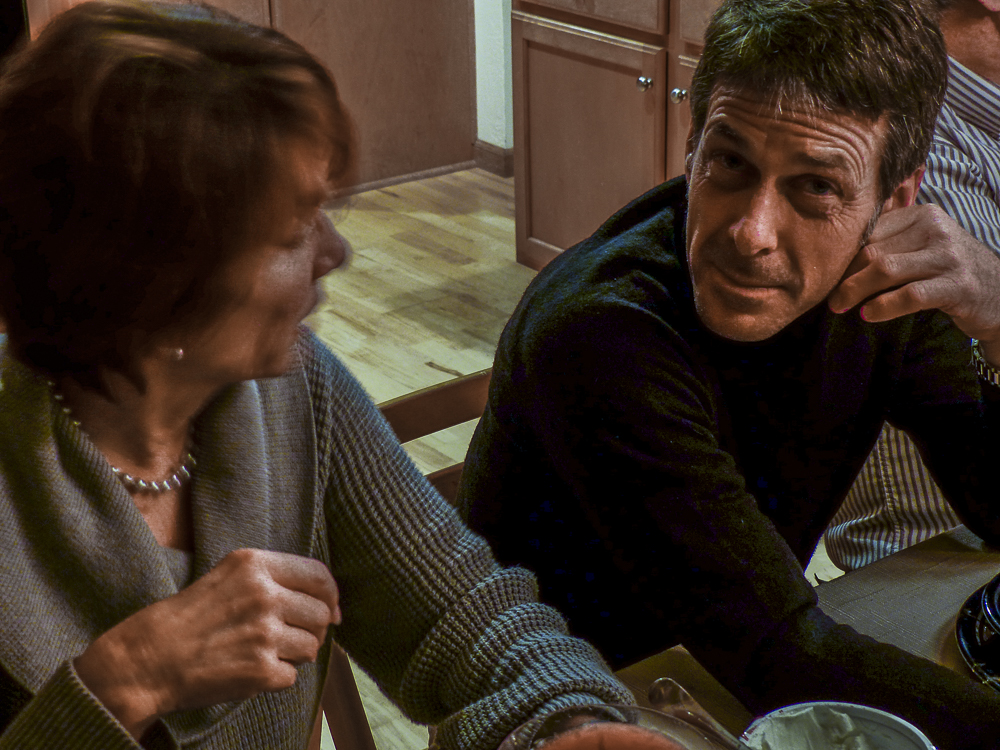

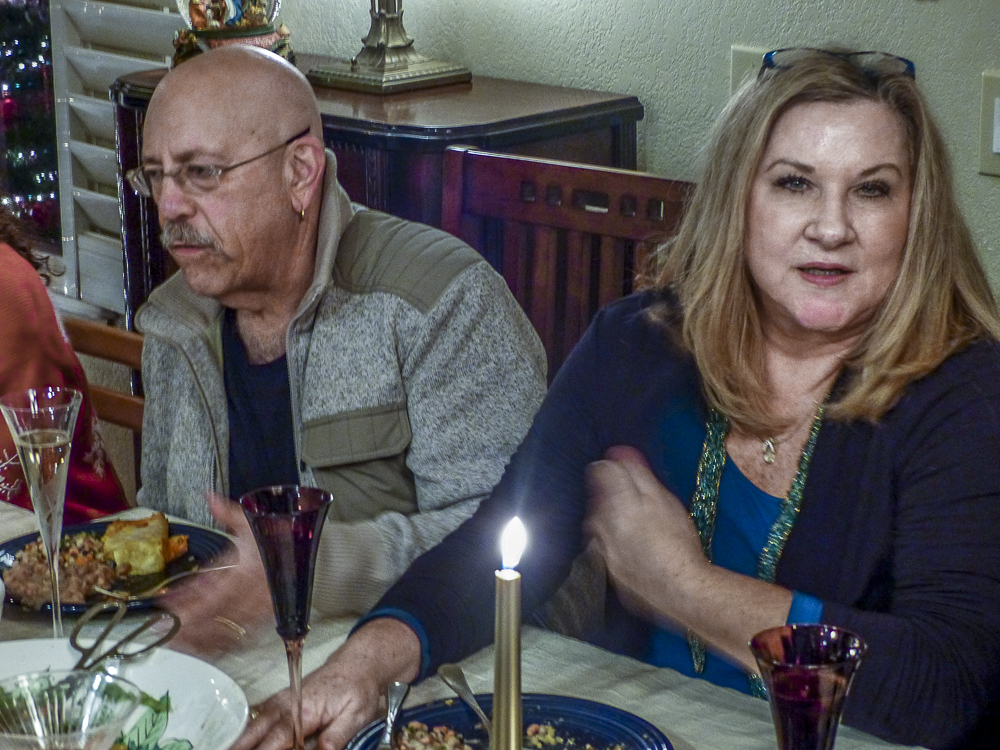





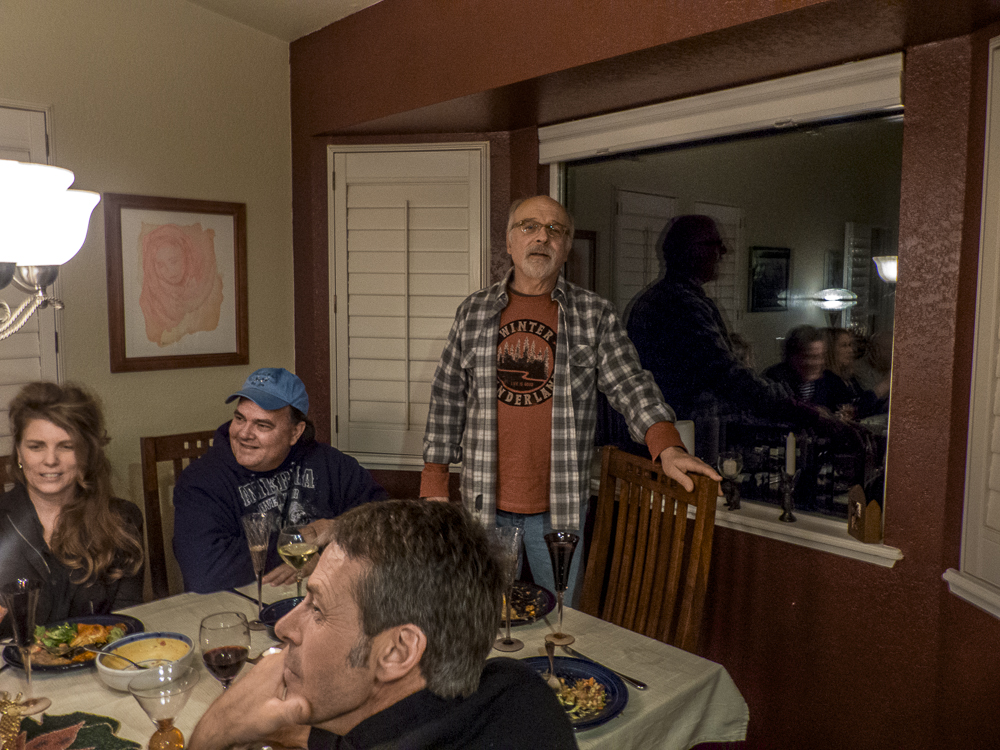
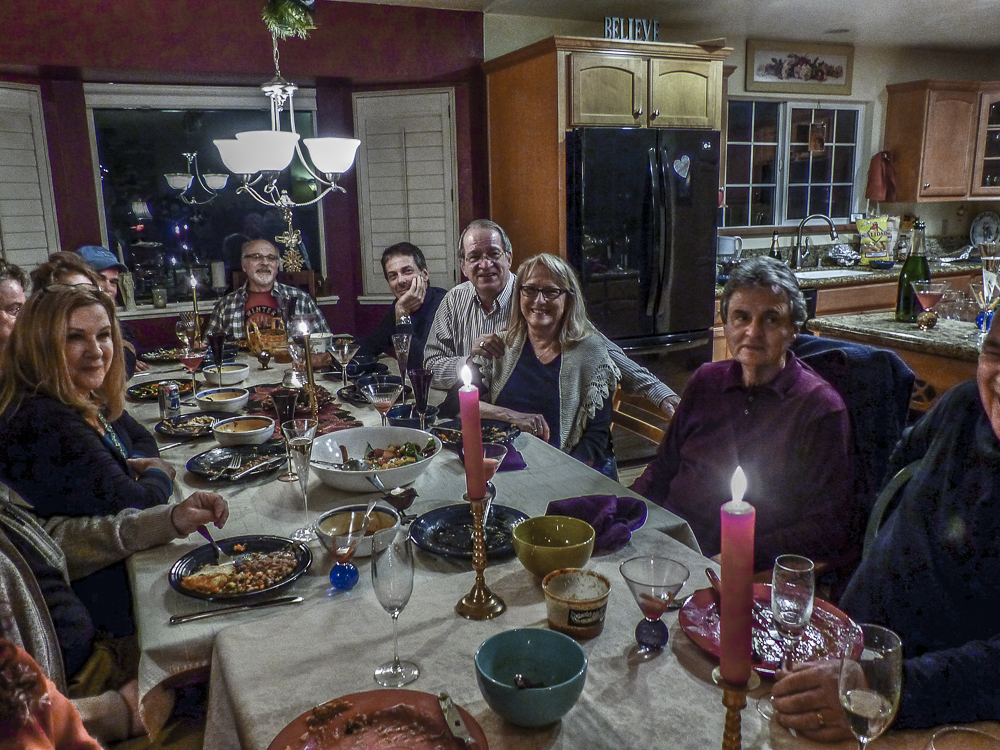





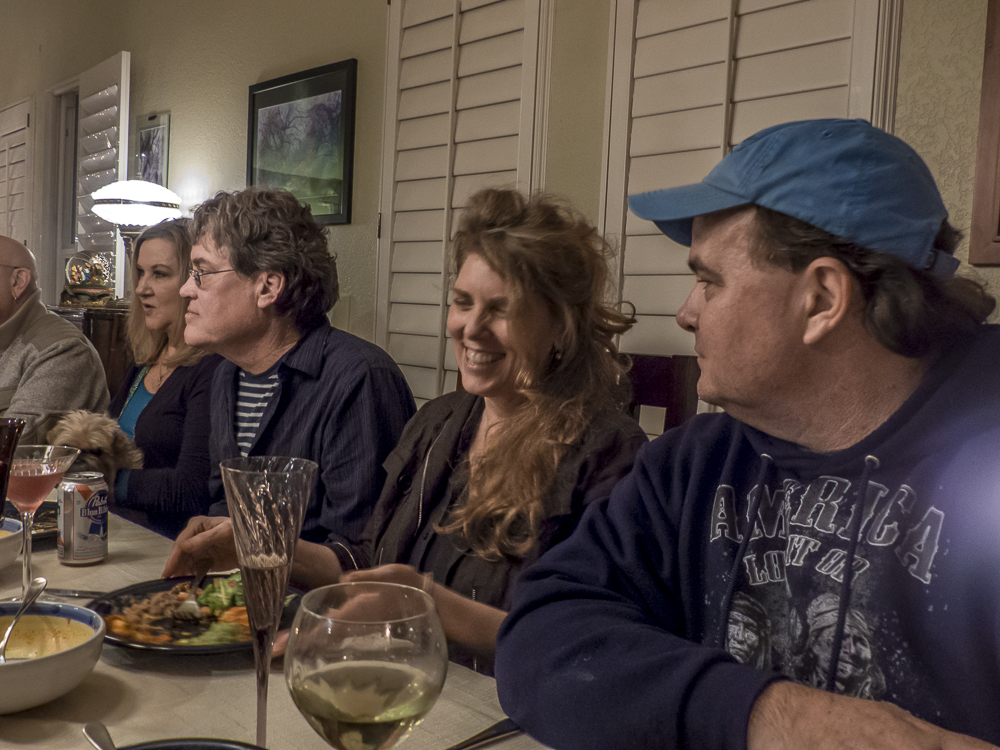

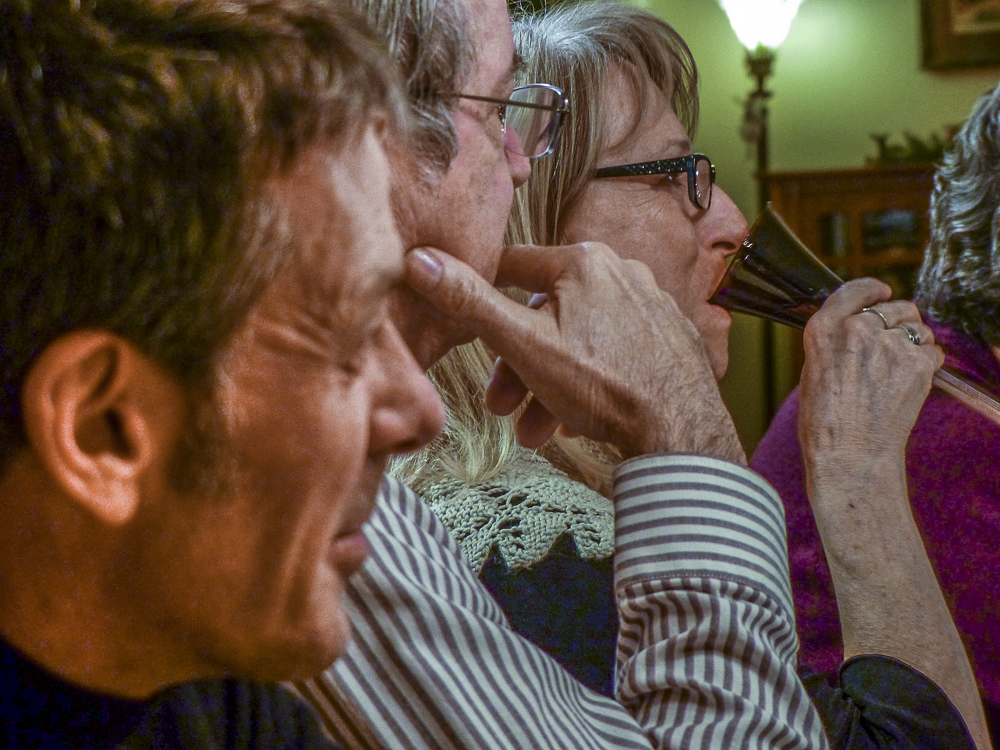












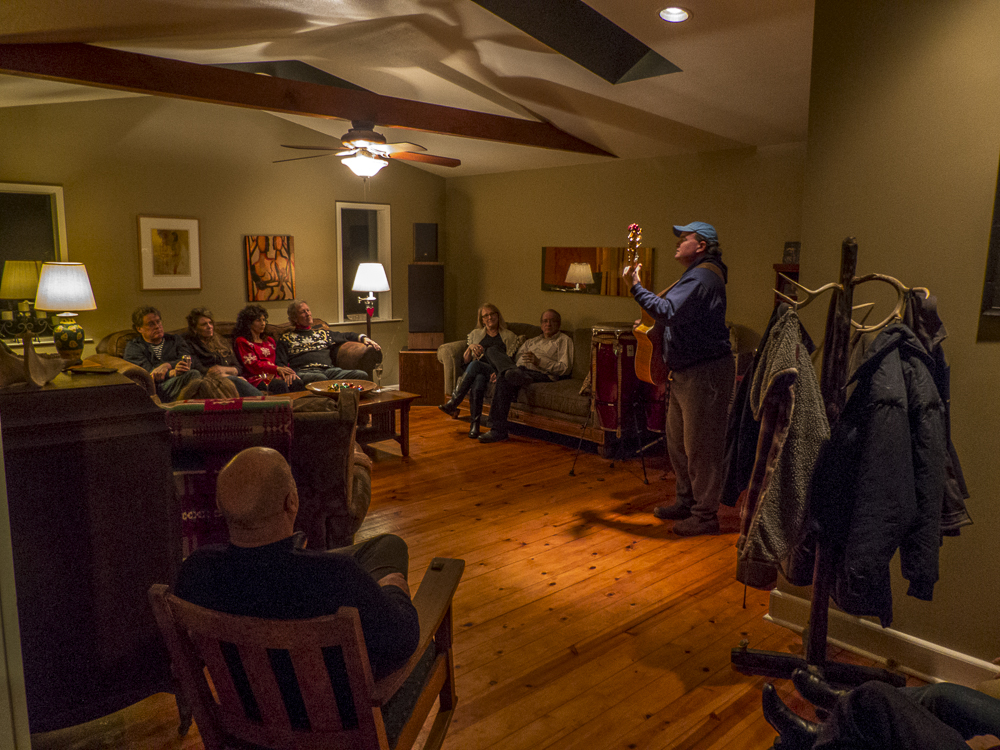










Another great Thanksmas. Unfortunately we had two wounded warriors. Joe with a broken ankle and Angela with a cracked hip bone and also a broken ankle. Still a good time had by all. Pictures don’t do it justice.



 My good friend Scott Oglesby has finally been getting recognition as a writer. His first book, the novel, Riding high, was acclaimed but undersold (as he calls it). (more…)
This is what I get now whenever trying fire up Dreamweaver or Photoshop CS3. It all started when I got my laptop back from Toshiba warranty repair. They merely replaced the blue ray player and the battery, so after checking with them, there was nothing they did that could cause this. Adobe has now gone to the “Creative Cloud” meaning you can “rent” their products instead of buy them. I already use the CC version of Photoshop and Lightroom which I get for $9.99/month but to have the latest Dreamweaver they charge another $30/mo… $360/year and that’s not to own! Out of the question, especially since most of my websites are now WordPress so I don’t need Dreamweaver nearly as much as I once did.
Of course I went through uninstall then re-install, with no change. Then I called Adobe. What a joke. They no longer give chat or phone support for any of their old products, only CC stuff. They said I had to go to the forum. Like I’m going to get a quick answer there. At any rate, I found many, many people have the same problem and it would happen for absolutely no reason, no change to the computer, no new files etc…. just one day they would get this error message. You would think Adobe would have the perfect answer to solve this let alone, why the heck it happened in the first place. The forum showed more complaints on Macs than PCs (however, it could be that more Photoshop is installed on Macs than PCs).
The meatiest solution was nine solutions, of which the 9th was to call Adobe support, which of course is useless since they do not support CS anything any longer. So I tried all 8 solutions, many of which had to do with permissions on the FLEXnet folder. I must have uninstalled and installed 5 or 6 times. Nothing worked. I went back to the forum and tried everything else that was listed until I exhausted all possible solutions. Very frustrating indeed. And I will be damned if I will pay Adobe $360/year just to use their web editor. This was about 4 hours of messing around.
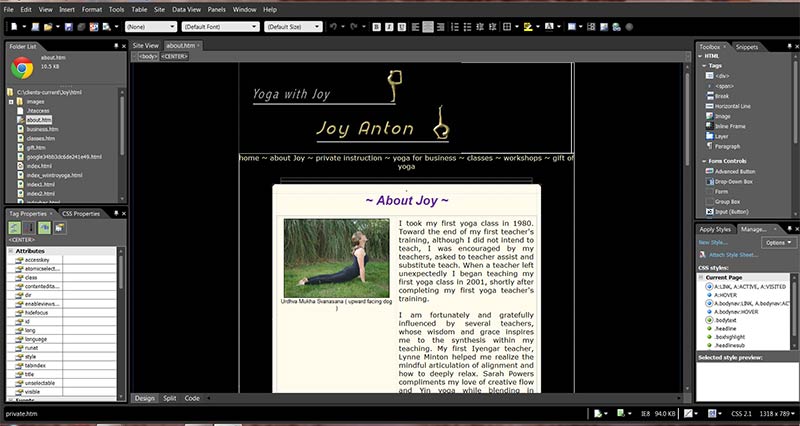
So I searched up “alternatives to dreamweaver” on Google. And lo and behold I came across Microsoft Expression Web 4.0 and its FREE! I read this article “Why I love this free alternative to dreamweaver” and was sold (not exactly sold since its free). After installing it, I am thrilled. Looks quite similar to Dreamweaver and should be easy to get acquainted with. Not sure how it will work with dreamweaver templates, but I will just have to find out as time goes by. I also noted another free web design software OpenElement which looks to be a steeper learning curve, but if MSFT Expressions doesn’t work out, I will check it.

I do love Lightroom that I have on Creative Cloud but its somewhat reasonably priced at $9.99/mo and includes Photoshop, and its always the latest version. It’s most likely going to turn out to be a bait and switch routine whereby at the end of this year (2014) they will raise the rate after getting customers addicted to their product. Bastards! I guess I will find out soon enough. But the whole concept of Adobe moving to renting their software instead of out right selling it really sucks. I’ve heard from many other web developers that are simply going to other available options that are way cheaper or even free. I also feel a corporation should stand by their products even if they are older models/versions. Imagine if you brought in your 2007 Chevy to a dealer and he said they no longer service them, you have to buy a new one, oh wait.. you have to RENT a new one. Big mistake Adobe, I hope you suffer in sales because of this.
Note: I found this excellent guide to removing most forms of malware, on the website MalwareTips.com. The only thing I would add is its best to run most of these programs in SAFE MODE. I had a very difficult piece of malware that I got by visiting piratebay.com and by going through these steps I was able to finally get rid of it.
“Warning! Critical update!” pop-up is a social engineering technique, which is used cybercriminals to install adware and other malicious programs on users machines.
![[Image: Warning! Critical update! virus]](https://i0.wp.com/malwaretips.com/blogs/wp-content/uploads/2013/09/warning-critical-update-virus.jpg?resize=600%2C181 "Warning! Critical update! virus")
![[Image: Warning! Critical update! redirect]](https://i0.wp.com/malwaretips.com/blogs/wp-content/uploads/2013/09/warning-critical-update-redirect.jpg?resize=600%2C227 "Warning! Critical update! redirect")
“Warning! Critical update!” virus is distributed through several means. Malicious websites, or legitimate websites that have been compromised, may drop this Trojan onto a compromised computer. This drive-by-download often happens surreptitiously. Another method used to propagate this type of malware is spam email containing infected attachments or links to malicious websites. The threat may also be downloaded manually by tricking the user into thinking they are installing a useful piece of software.
“Warning! Critical update!” virus is also prevalent on peer-to-peer file sharing websites and is often packaged with pirated or illegally acquired software.
On infected or compromised websites, cybercriminals will display a pop-up box stating that your Internet Explorer, Firefox or Chrome needs to be updated. If you click on the “Install Update” button, instead of installing an update, you’ll be prompted to install adware or another malicious program on your computer.
The text of this pop-up is:
Warning! Critical Update!
The following important update is available for your computer. Install update
The “Warning! Critical update!” link may install on your computer, toolbars (Babylon Toolbar, Delta Toolbar), adware (Yontoo, DealPly, CouponBuddy), and in the more recent attacks cyber criminals have started infected the Windows users with the Zeus Trojan.
![[Image: Warning! Critical update! infection]](https://i0.wp.com/malwaretips.com/blogs/wp-content/uploads/2013/09/warning-critical-update-malware.jpg?resize=600%2C583 "Warning! Critical update! malware")
This infection is designed specifically to make money. It generates web traffic, collects sales leads for other dubious sites, and will display advertisements and sponsored links within your web browser.
Depending on what is causing the “Warning! Critical update!” redirect, the malware removal process can be different for each particular case, however using the below guide, you should be able to remove this infection from your computer.
You should always pay attention when installing software because often, a software installer includes optional installs, such as this “Warning! Critical update!” adware. Be very careful what you agree to install.
Always opt for the custom installation and deselect anything that is not familiar, especially optional software that you never wanted to download and install in the first place. It goes without saying that you should not install software that you don’t trust.
This page is a comprehensive guide, which will remove the Warning! Critical update! infection from your your computer. Please perform all the steps in the correct order. If you have any questions or doubt at any point, STOP and ask for our assistance.
STEP 1: Remove Warning! Critical update! Master Boot Record infection with Kaspersky TDSSKiller
STEP 2: Remove Warning! Critical update! virus with Malwarebytes Anti-Malware Free
STEP 3: Remove Warning! Critical update! trojan with RogueKiller
STEP 4: Remove Warning! Critical update! infection with HitmanPro
STEP 5: Double check for any left over infections with Emsisoft Emergency Kit
STEP 6: Remove Warning! Critical update! adware with AdwCleaner
As part of its self defense mechanism, Warning! Critical update! virus will install a ZeroAccess rootkit on the infected computer.In this first step, we will run a system scan with Kaspersky TDSSKiller to remove this rookit.


Malwarebytes Anti-Malware Free is a powerful on-demand scanner which will remove Warning! Critical update! malicious files from your computer.
![[Image: Malwarebytes Anti-Malware final installation screen]](https://i0.wp.com/malwaretips.com/blogs/wp-content/uploads/2013/01/malwarebytes-installation.jpg?resize=402%2C310 "Malwarebytes Anti-Malware installation screen")
![[Image: Malwarebytes Anti-Malware Quick Scan]](https://i0.wp.com/malwaretips.com/blogs/wp-content/uploads/2013/01/malwarebytes-quick-scan.jpg?resize=521%2C397 "Run a Quick Scan with Malwarebytes Anti-Malware")

![[Image: Malwarebytes Anti-Malware scan results]](https://i0.wp.com/malwaretips.com/blogs/wp-content/uploads/2013/01/malwarebytes-scan-results.jpg?resize=521%2C397 "Malwarebytes when the system scan has completed")
![[Image: Malwarebytes Anti-Malwar removing Warning! Critical update! virus]](https://i0.wp.com/malwaretips.com/blogs/wp-content/uploads/2013/01/malwarebytes-virus-removal.jpg?resize=521%2C397 "Malwarebytes Anti-Malwar removing Warning! Critical update! virus")
RogueKiller is a utility that will scan for the Warning! Critical update! rootkit, registry keys and any other malicious files on your computer.
![[Image: RogueKiller scaning for Warning! Critical update! virus]](https://i0.wp.com/malwaretips.com/blogs/wp-content/uploads/2013/02/roguekiller-scan.jpg?resize=520%2C390 "Click on the Start button to perform a system scan")
![[Image: RogueKiller Detele button]](https://i0.wp.com/malwaretips.com/blogs/wp-content/uploads/2013/02/roguekiller-delete.jpg?resize=520%2C390 "Press Delete to remove Luhe.Sirefef.A")
HitmanPro is a cloud on-demand scanner, which will scan your computer with 5 antivirus engines (Emsisoft, Bitdefender, Dr. Web, G-Data and Ikarus) for the Warning! Critical update! infection.


![[Image: HitmanPro 30 days activation button]](https://i0.wp.com/malwaretips.com/blogs/wp-content/uploads/2012/11/hitmanpro-activation.jpg?resize=497%2C393 "HitmanPro free 30 days trial")


The AdwCleaner utility will scan your computer for Warning! Critical update! malicious files that may have been installed on your computer without your knowledge.
![[Image: AdwCleaner Icon]](https://i0.wp.com/malwaretips.com/blogs/wp-content/uploads/2013/08/adwcleaner-icon.jpg?resize=123%2C140 "AdwCleaner Icon")
![[Image: Adwcleaner Scan]](https://i0.wp.com/malwaretips.com/blogs/wp-content/uploads/2013/08/adwcleaner-scan.jpg?resize=530%2C570 "Click on Scan button to search for Warning! Critical update! infection")
![[Image: AdwCleaner removing infections]](https://i0.wp.com/malwaretips.com/blogs/wp-content/uploads/2013/08/adwcleaner-cleanup.jpg?resize=530%2C570 "Click on the Clean button to remove Warning! Critical update! virus")
Your computer should now be free of the Warning! Critical update! infection. If your current anti-virus solution let this infection through, you may want to consider purchasing the PRO version of Malwarebytes Anti-Malware to protect against these types of threats in the future, and perform regular computer scans with HitmanPro.
How Democrats could keep control of the Senate http://t.co/H9WBFZ4goL pic.twitter.com/7UvPrLu3QO
— The New York Times (@nytimes) October 22, 2014
Notice the low percentage likelihood.